What's New?
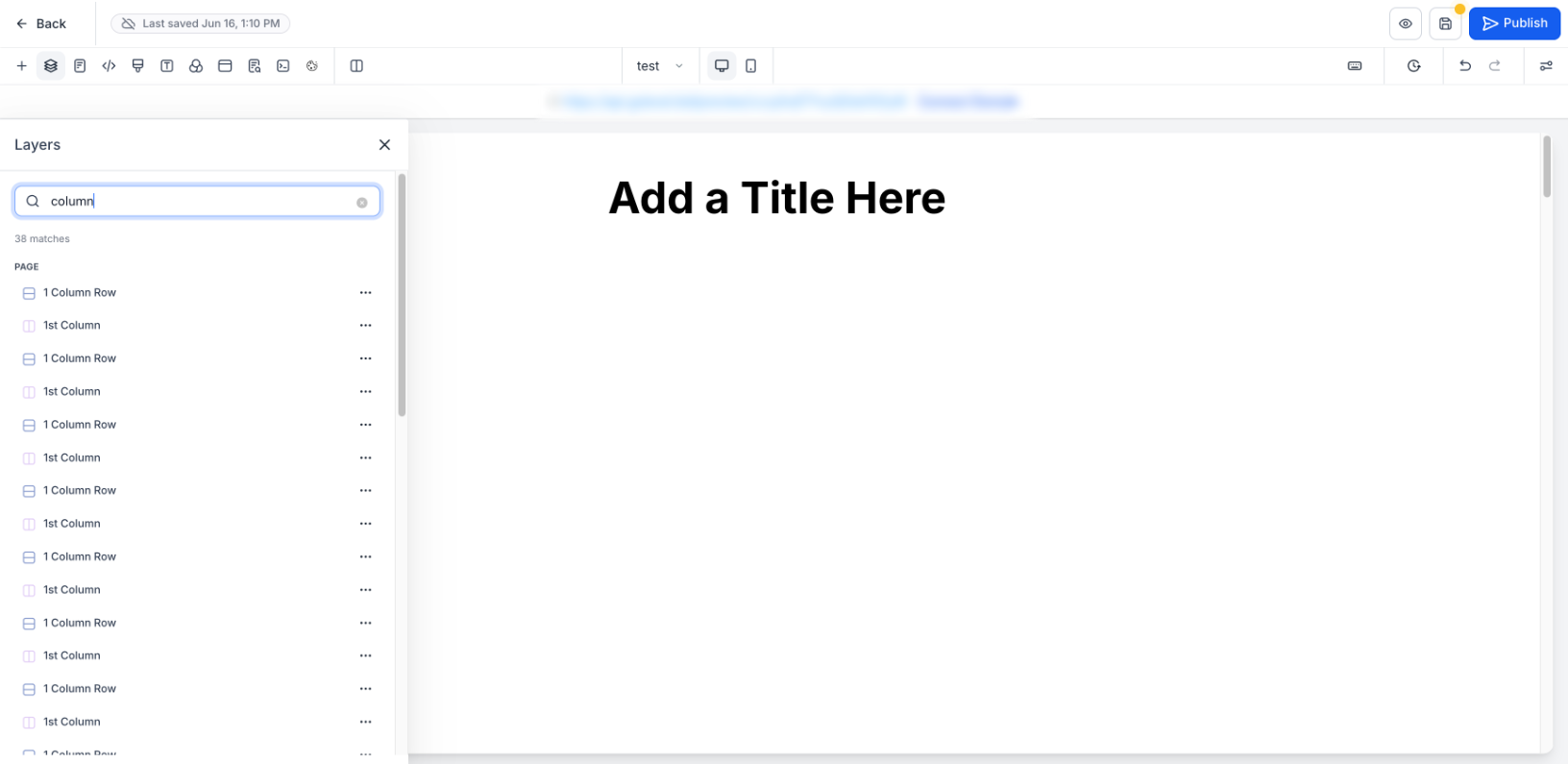
Introducing Layers Panel Search — a search bar built directly into the Layers panel of the platform Website & Funnel Builder that lets you find any element on your page instantly. Search by name, type, or element ID and jump straight to it — no more scrolling and expanding a deep layer tree to find what you need.
Why This Feature?
On content-heavy pages, the Layers tree gets long and deeply nested. Finding one specific element — a particular image, a button, a section buried inside columns — meant manually expanding branch after branch. Layers Panel Search eliminates that friction: type what you're looking for and go straight to it.
Key Highlights
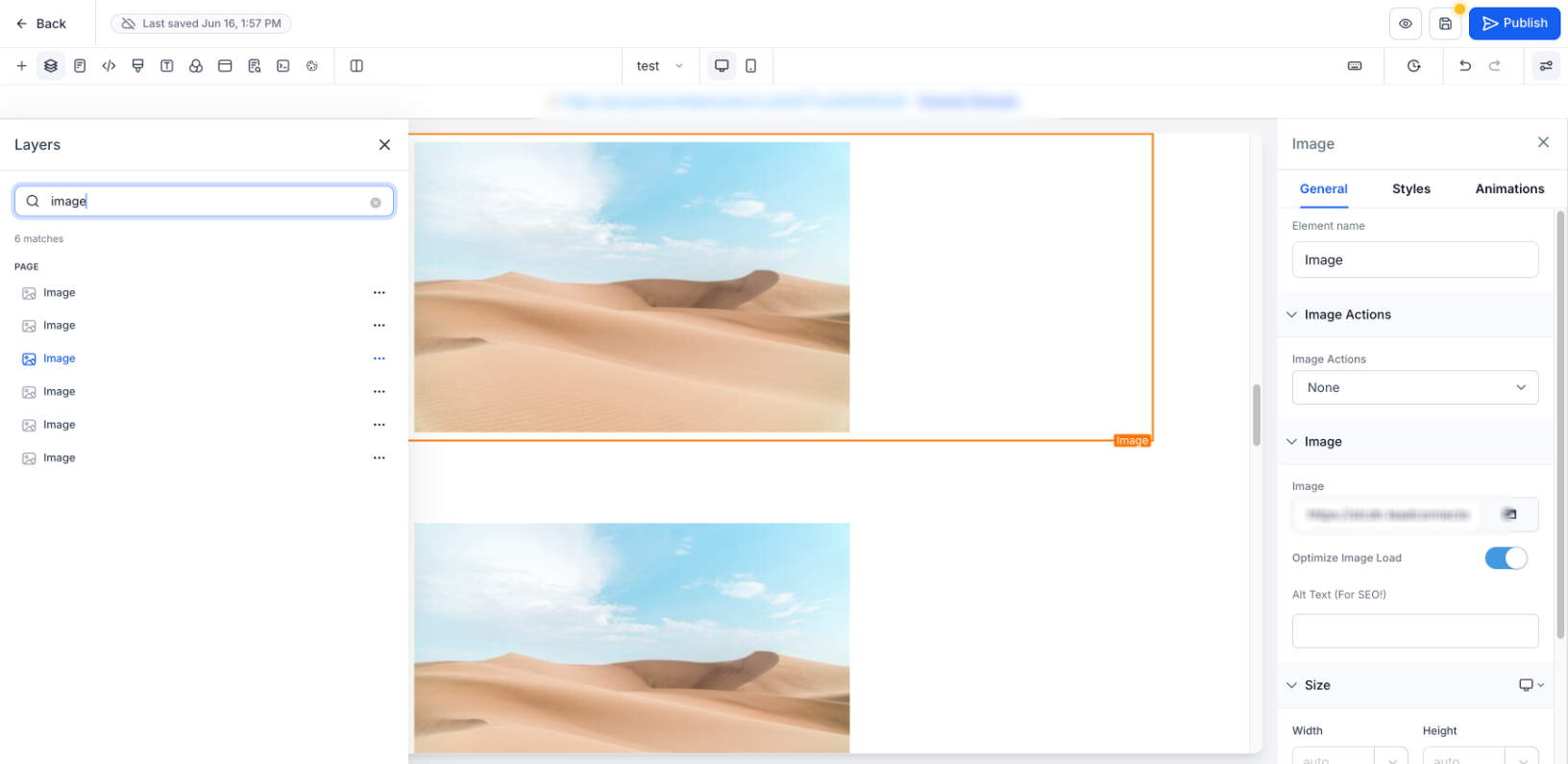
- Search by Name, Type, or ID – Match elements by their title (e.g. "Headline"), their type (e.g. "Image", "Column"), or their element ID
- Instant Flat Results – Matches appear in a flat list grouped under Page / Popup, with a live match count
- Click to Jump & Select – Click any result to select and scroll to that element on the canvas, opening its settings
- Full Actions from Results – Hide/Show, Edit, Clone, and Delete directly from each result's ⋯ menu
- Color-Coded Icons – Sections, rows, and columns keep their familiar icon colors in the results list
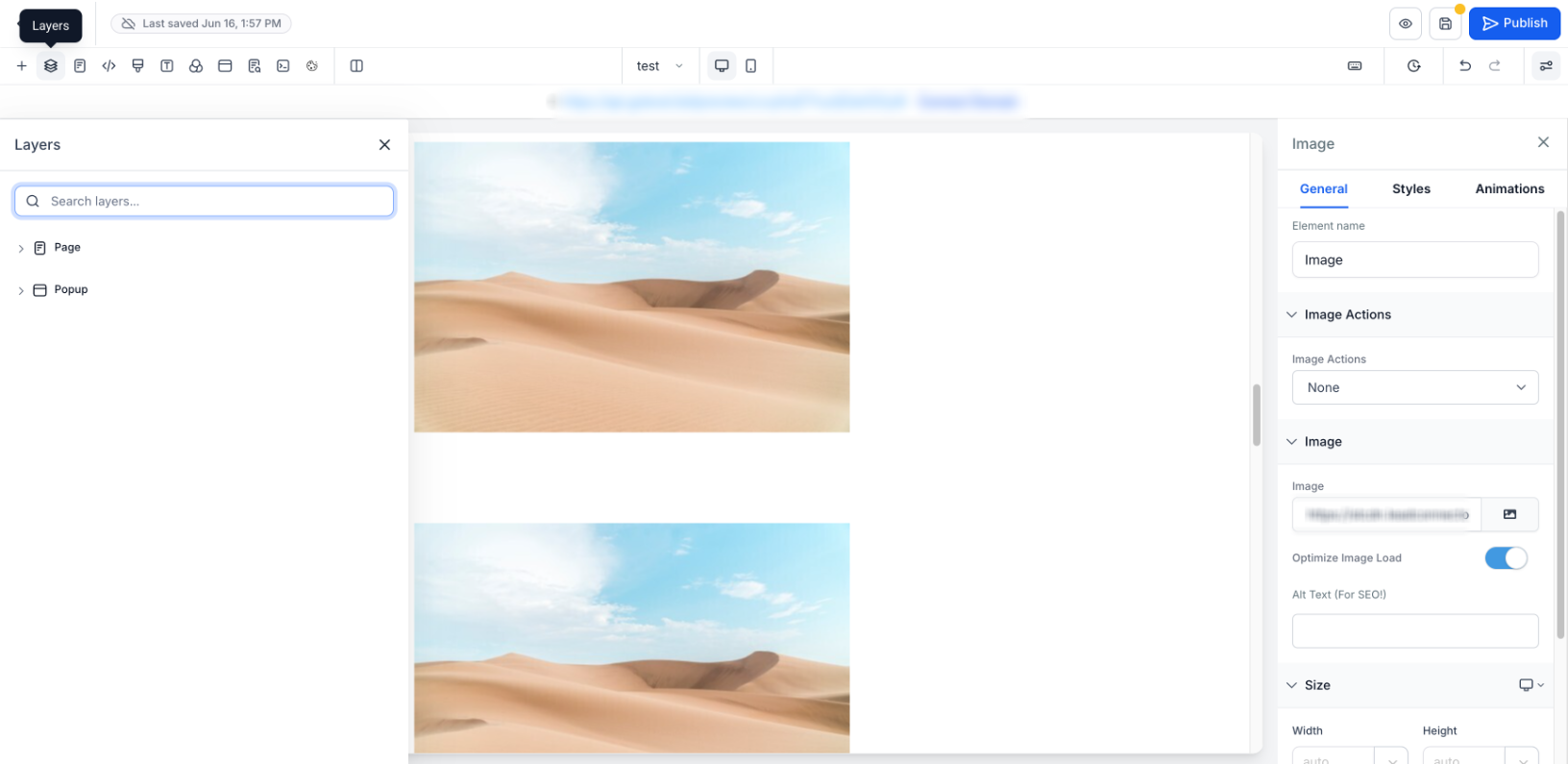
- One-Click Clear – Clear the search to return instantly to the full Layers tree
How to Use
Access
: Website/Funnel Builder → Edit Page → Layers panel (left toolbar) → Search layersSteps:
- Open the Layers panel
- Type an element name, type, or ID in the search box
- Click a result to jump to and select that element on the canvas — or use the ⋯ menu for Hide/Show, Edit, Clone, Delete
- Click the ✕ to clear and return to the full layers tree
Good to Know
- Search covers the current page's layers (both Page and Popup branches) — it does not search other pages or funnel steps
- Matching is case-insensitive and works on partial text
- Results update as you type; clearing the box restores the full tree
Was this article helpful?
That’s Great!
Thank you for your feedback
Sorry! We couldn't be helpful
Thank you for your feedback
Feedback sent
We appreciate your effort and will try to fix the article